

AI Overview
What is the best resolution for AI video on Facebook Reels?
Use a 1080 × 1920 pixel vertical master. It fills the 9:16 Reels canvas, preserves useful detail for compression, and remains practical to generate, edit, review, and upload.
Is 720p good enough for Facebook Reels?
It can upload, but fine faces, text, hair, product edges, and particles are more likely to soften. Upscale only a clean clip; regenerate if identity or motion is already broken.
Should Facebook Reels be 30 or 60 fps?
Use 30 fps for most AI video. Keep 60 fps only when the source was genuinely generated or mastered at 60 and fast motion clearly benefits from the extra temporal detail.
Ready to try it yourself?
Free credits on signup. Plans from $20/month.
What export settings should I use for an AI Reel?
Export a progressive H.264 MP4 at 1080 × 1920 with AAC audio. Preserve the approved source frame rate, use a high-quality bitrate, and review the uploaded Reel before publishing.
Best Resolution for AI Video on Facebook Reels
The most dependable production target is 1080 × 1920 pixels in a 9:16 aspect ratio. That gives Facebook a full-height vertical file without asking the platform to invent pixels, crop a landscape frame, or enlarge a low-resolution draft. It also gives editors enough room to reposition an AI subject while protecting faces, products, captions, and calls to action.
Resolution is not a ranking shortcut. A technically perfect file can still fail if the opening is slow, the subject is tiny, or the story is unreadable without sound. Treat 1080 × 1920 as a clean delivery container, then judge the creative on attention, clarity, motion, and completion.
| Delivery decision | Recommended starting point | Why it works |
|---|---|---|
| Canvas | 1080 × 1920 | Practical Full HD vertical master |
| Aspect ratio | 9:16 | Uses the native full-screen Reels shape |
| Scan | Progressive | Avoids interlacing artifacts |
| File | MP4, H.264 | Widely supported delivery format |
| Audio | AAC, 48 kHz | Reliable speech and music handoff |
| Frame rate | 30 fps by default | Efficient for most generated motion |
Why 1080 × 1920 beats “export as large as possible”
A 4K vertical master can be useful for reframing or archival work, but it does not guarantee a visibly sharper Reel after platform processing. It increases file size, render time, and quality-control effort. Export 1080 × 1920 when the edit is locked; keep a larger clean master only when the team expects alternate crops or close reframes.
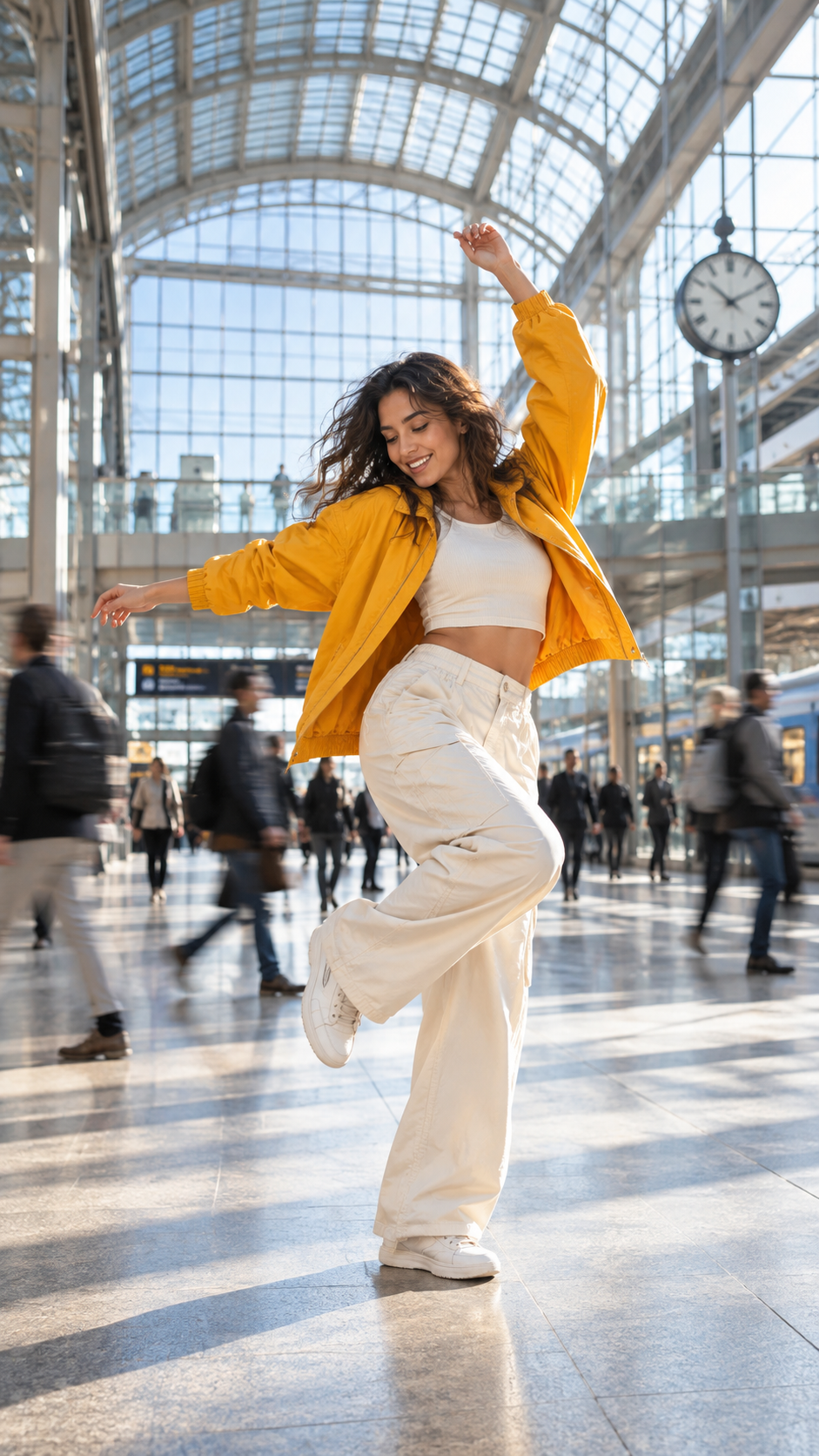
A strong Reels master uses the entire vertical canvas while keeping the subject readable on a phone.
Build the AI Video at 9:16 Before You Generate
The cheapest crop is the one you never need. Set the output to 9:16 before generation, then compose the subject for a phone screen. A person framed beautifully in a wide cinematic shot can become a small figure after a center crop. A product close-up can lose a handle, label, or hand contact when the sides are removed.
If the concept begins as a still, use an image-to-video workflow with a vertical source image. If it begins as text, specify the vertical composition in the first line of the text-to-video prompt: full-height portrait frame, one dominant subject, readable foreground action, and uncluttered edges.
Compose for motion, not a poster
Leave space in the direction of movement. A dancer needs room for hands and feet; a product pour needs room for the liquid path; a walking character needs room to enter and exit. Keep the important action near the visual center, but avoid locking every shot to a static centered pose.
Use a simple three-zone test before generation:
- Primary zone: face, product, or main action remains clear in the central area.
- Support zone: props and environmental clues can approach the edges but are not essential.
- Expendable zone: atmosphere, background people, and texture may be covered or cropped.
src=https://r2.seedance.tv/blog/best-resolution-for-ai-video-facebook-reels/reels-coffee-motion-output-v1.mp4
poster=https://r2.seedance.tv/blog/best-resolution-for-ai-video-facebook-reels/reels-coffee-motion-poster-v1.jpg
label=Seedance · Actual vertical lifestyle motion output
Review real motion at phone size: steam, hand movement, and the focal object should remain legible without a wide-screen crop.
Export Settings: Resolution, FPS, Codec, Bitrate and Audio
Use one controlled export preset rather than changing several settings for every post. A dependable starting preset is 1080 × 1920, progressive H.264 MP4, AAC audio at 48 kHz, and the frame rate of the approved master. For many AI clips that means 30 fps.
Facebook Reels frame rate: 30 vs 60 fps
Choose 30 fps for dialogue, portraits, product reveals, tutorials, and moderate camera movement. It is efficient, predictable, and avoids manufacturing frames that were never present. Choose 60 fps only when the original clip contains clean high-speed action at 60 fps or when a 60 fps master will also serve other placements.
Do not convert a 24 or 30 fps generation to 60 merely because the number sounds better. Frame duplication can create uneven motion, while interpolation can bend hands, faces, liquid, or fast edges. For a deeper decision tree, use the AI video frame-rate guide.
Bitrate and compression
Use a high-quality variable bitrate appropriate to the motion. A quiet portrait needs less data than confetti, water, foliage, or a rapid camera move. As a practical starting range, try roughly 8–16 Mbps for a 1080 × 1920 H.264 export, then inspect the result. This is a production recommendation, not a fixed platform requirement.
Export once from the approved timeline. Repeatedly downloading, messaging, and re-exporting a compressed file accumulates softness and blocking. Keep the original render, project file, captions, and audio stems together.

Fine product edges and transparent motion reveal compression problems faster than a static background.
Keep Faces, Text and Products Inside the Safe Area
Reels interface elements can cover the top, bottom, and right side of the video. The exact overlay can vary by device, placement, caption length, and product changes, so do not design to a single magical pixel measurement. Keep irreplaceable information away from the outer edges and preview the uploaded result on a phone.
A practical safe-area acceptance check
Before approval, place the 9:16 master inside a Reels preview or an overlay guide and answer five questions:
- Can the face be recognized at normal phone size?
- Is the product silhouette complete and unobstructed?
- Can every essential caption be read without pausing?
- Does the first visual idea register before the interface competes for attention?
- Does the final call to action remain visible long enough to act?
Keep burned-in copy concise. Subtitles should follow speech, but a permanent headline should not sit under the account name, description, or action controls. Also review the clip with sound off and with sound on: audio can improve a Reel, but it should not be the only carrier of the premise.

Use a close face as a stress test for detail, identity, and compression—not just as decoration.
Fix 720p, Landscape or Soft AI Footage
Not every source arrives at 1080 × 1920. First decide whether the motion is worth saving. Upscaling can improve edges and perceived detail; it cannot repair a drifting identity, broken hand, warped product, or incoherent camera path.
Choose crop, extend, upscale, or regenerate
| Source problem | Best first move | Reject when |
|---|---|---|
| Clean landscape shot with centered subject | Reframe to 9:16 | The crop removes essential action |
| Clean 720p vertical clip | Upscale, then add mild sharpening | Faces or text already look invented |
| Subject too close to an edge | Extend the frame or regenerate | Extension changes identity or geometry |
| Soft but coherent motion | Test one upscale pass | Texture flickers from frame to frame |
| Broken anatomy or product | Regenerate from the last approved reference | No post-process can restore the intended action |
If 1080p output is unavailable at generation time, preserve the highest-quality original and follow the Seedance 2.5 1080p troubleshooting guide. Upscale after the motion passes, not before. Check three points at full size: the opening frame, the hardest movement, and the final frame.

Complex texture is a useful final check because over-sharpening can make steam, hair, and highlights shimmer.
Seedance Agent Workflow for Reels Variants and Approval
A single Reel is easy to export; a campaign is where version mistakes begin. One team needs the original 9:16 master, alternate hooks, two caption treatments, localized copy, and perhaps several endings. If those variants are rendered ad hoc, filenames, crops, and approvals drift.
Seedance Agent can turn the brief into a shot plan, keep references attached to the right generation, and route only rejected shots back to generation. Ask it to preserve one approved vertical master, then derive clearly named variants rather than rebuilding the concept from scratch.
Reusable Reel production contract
Give every job the same acceptance contract:
Canvas: 1080 × 1920, 9:16, progressive
Frame rate: preserve approved source; 30 fps default
Protected elements: face, product geometry, headline, final CTA
Audio: AAC, 48 kHz; speech intelligible on phone speakers
Review: opening, hardest motion, final frame, safe-zone preview
Deliverables: clean master, captioned master, platform upload copy
The clip below is a different finished vertical output. Its rotation and shadow make edge quality, temporal stability, and product readability easy to inspect.
src=https://r2.seedance.tv/blog/best-resolution-for-ai-video-facebook-reels/reels-product-orbit-output-v1.mp4
poster=https://r2.seedance.tv/blog/best-resolution-for-ai-video-facebook-reels/reels-product-orbit-poster-v1.jpg
label=Seedance · Actual vertical product-orbit output
Keep the creative master separate from the Reels upload copy so a platform-specific re-export never replaces the approved source.
Final upload checklist
Upload privately or as a draft when possible. Watch the processed version on a phone, not only the local file. Confirm the first second, face and product detail, subtitle timing, overlay clearance, audio level, and ending. If processing produces unexpected softness, compare against the local master before changing the generation prompt.
Conclusion
For most AI videos on Facebook Reels, use a 1080 × 1920 progressive H.264 MP4 in 9:16, preserve a clean 30 fps source unless genuine 60 fps motion requires more, and keep essential faces, products, captions, and calls to action away from interface-heavy edges. Generate vertically, approve motion before upscaling, export once from the master, and review the processed upload on a real phone. When you need a repeatable path from references and shot planning to multiple approved vertical variants, start your Reels workflow with Seedance →
Ready to try it yourself?
Put the steps from this guide into practice with Seedance and turn prompts or images into polished videos in minutes.
Free credits on signup. Plans from $20/month.
Related Articles
More posts in the same locale you may want to read next.
Seedance App Preview Video Generator 2026: Create App Store and Product Launch Clips
Use Seedance to turn app screenshots, feature copy, and launch goals into App Store previews, Google Play promo videos, and product launch clips.
Read article
Higgsfield Cinema Studio Camera Settings: A Practical Shot Guide
Set focal length, aperture, lighting and camera movement in Higgsfield Cinema Studio with a repeatable shot card, practical examples and a review checklist.
Read article
ComfyUI Crowd Video Workflow: Control People, Motion, and Occlusion
Build a ComfyUI crowd video workflow that separates lead action from background motion, controls occlusion, protects faces, and produces reviewable group scenes.
Read article