
How to Access Seedance 2.5: Sign-Up, Web App & Step-by-Step Guide

Disclosure: Seedance.tv is an independent AI creation platform. It is not owned by ByteDance and is not the official ByteDance Seedance website or API.
AI Overview
How do I access Seedance 2.5?
Open Seedance.tv in a current browser, choose Sign In, create an account, and select Seedance 2.5 in the video workspace. Nothing needs to be installed.
Is Seedance 2.5 free to access?
You can sign up without a credit card. Eligible new accounts may receive one-time starter credits; check the balance shown after sign-in because the amount can change. Paid plans add monthly credits and commercial usage rights.
Where can I use Seedance 2.5 on the web?
Seedance.tv provides independent browser access to listed models. For first-party Seedance 2.5 information, use the official ByteDance Seed launch article and verify the current model documentation before relying on specifications.
Ready to try it yourself?
Free credits on signup. Plans from $20/month.
Do I need to download anything to use Seedance 2.5?
No. Seedance 2.5 runs in the browser on desktop, tablet, and mobile. A current browser, stable connection, and enough storage for uploads and downloads are sufficient.
Where to Access Seedance 2.5 on the Web
Use the Seedance.tv homepage or a saved bookmark. Because the service is web-based, the address bar should continue to show seedance.tv across the generator, pricing, and account areas.
Once inside, a legitimate session should keep the same profile, credit balance, and creation history across tools. If a link unexpectedly requests another account, extension, or installer, return to the homepage and restart from the main navigation.
Before signing in, confirm HTTPS, the exact domain spelling, and consistent navigation. Avoid copied landing pages, browser extensions, APK files, or desktop installers promising “special access.” The browser workflow needs no activation tool.
Before uploading client footage or paying, verify the account, selected Seedance 2.5 model, displayed credit cost, and current availability.

Open Seedance.tv directly, then verify your account and selected model before uploading production media.
Do You Need to Download Seedance 2.5?
Seedance 2.5 generates in the cloud through current browsers on Windows, macOS, iOS, iPadOS, and Android. Your device handles prompts, files, previews, and downloads; it does not run the model locally or need a dedicated GPU.
Cloud generation removes the GPU requirement, but uploads still depend on your connection and browser. Keep source files within the workspace limit, leave local storage for exports, and use a stable network. Desktop browsers are more reliable for large files and side-by-side review.
Desktop is best for comparing references, reviewing frames, and managing versions. Tablets suit on-set review, while phones work for queue checks, simple tests, and sharing. Approve detailed work on a larger screen.
No Windows, Mac, iPhone, or Android installer is required. For faster mobile access, save the Seedance.tv page to your home screen instead of trusting unverified executables or APKs.
Mobile access uses the same web workflow, while desktop offers more room for references and review.
How to Sign Up for Seedance 2.5 for Free (Step-by-Step)
- Open Seedance.tv and select Sign In in the top navigation.
- Complete an available sign-in method in the same browser tab, then confirm the account in the workspace.
- Confirm that the intended account and its current credit balance are visible.
- Check the credit balance before generating. Eligible new accounts may receive one-time starter credits; the current amount is shown after sign-in, and no card is required to create an account.
- Open the AI Video area, choose Seedance 2.5 from the model selector, and decide whether the shot starts from text or an image.
- Set the aspect ratio, duration, and available quality options. Read the displayed credit cost before pressing Generate.
- Enter one controlled prompt, submit the job, and keep the page open while uploads finish.
Make the first job short and use one aspect ratio. Record the selected model, duration, resolution, credit cost, prompt, and reference file. If the result is useful, that record becomes a baseline for later revisions and makes paid-plan estimates more realistic.
If the welcome balance is missing, refresh once and confirm you did not use a second account. Credit cost varies by model and settings, so benchmark one subject, one action, one camera move, and a few protected details.
Example: Amber bottle on a stone counter. Slow clockwise camera orbit; warm light sweeps across the label. Preserve bottle shape, label text, cap color, and composition. This makes preservation, motion, and lighting easy to judge.
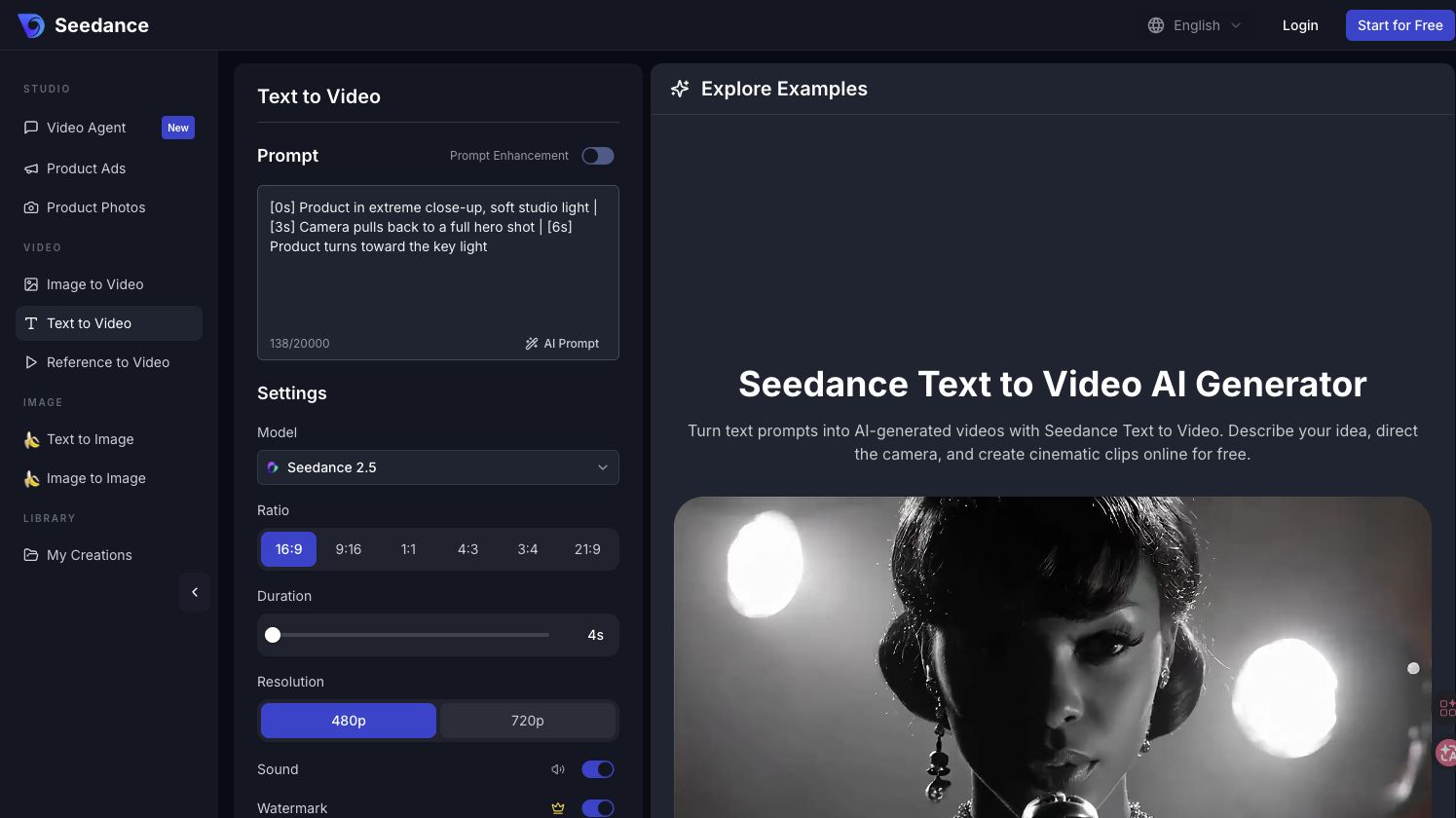
Confirm Seedance 2.5 in the model selector, then review duration, resolution, sound, and credit cost before generating.
src=https://r2.seedance.tv/blog/seedance-2-5-reference-guide/material-reveal-seedance-v1.mp4
poster=https://r2.seedance.tv/blog/seedance-2-5-reference-guide/material-reveal-poster-v1.webp
label=Seedance 2.5 · A controlled material-reveal shot made from a reference image
A short reference-led reveal is an efficient first test after registration.
Starter Access vs Paid Plans
Starter access answers one question: can the model execute your shot? Eligible new accounts may receive a small one-time credit balance, and the number of generations depends on the selected settings. No card is required to create an account.
Paid plans support repeat production with monthly credits, commercial usage rights, both generation modes, and faster queues on eligible tiers. Published plans currently offer up to 720p and 15-second clips; longer runs use more credits. Recheck live pricing before purchase.
Estimate capacity from an approved test rather than a headline promise. Multiply the successful job’s credit cost by the expected number of drafts, formats, and final clips per month, then add room for rejected generations. This shows whether the smallest plan is sufficient or a larger allowance will actually save interruptions.
| Access | Starter access | Paid plans |
|---|---|---|
| Requirement | Account; no card for the welcome test | Monthly or yearly subscription |
| Credits | One-time starter balance for eligible accounts; amount shown after sign-in | Monthly allowance based on plan |
| Best for | One controlled quality check | Iteration, campaigns, and regular production |
| Queue | Standard availability | Faster queue on eligible tiers |
| Commercial use | Confirm terms before client delivery | Listed as included on current plans |
| Current output | Depends on the selected model | Up to 720p on the published plans |
Upgrade after the starter result proves useful. Budget for rejected drafts, aspect-ratio versions, and final exports; the published plans remain credit-based. Review these Seedance 2.5 use cases before choosing a tier.

Budget for useful retries, not only the final export: one controlled change per rerun makes each credit easier to evaluate.
How to Access Seedance 2.5 on Mobile
Open seedance.tv in a current mobile browser and use the same account as desktop. You can select a model, upload an image, enter a prompt, check status, preview, and download without an iOS or Android app.
On iPhone or iPad, choose Add to Home Screen from the share menu. On Android, choose Add to Home screen or Install app. The shortcut opens the Seedance.tv web app; it does not install the model.
Keep source files in Photos or Files, allow browser access, use short filenames, and stay on stable Wi-Fi or 5G during upload. Keep the tab active until upload finishes. If preview playback stutters, download the video and review it locally.
Phones may pause background tabs during long uploads or generation checks. Keep the screen awake until the transfer completes, avoid switching networks midway, and download important outputs before clearing browser data. Use desktop for final frame-level approval whenever possible.

Troubleshooting Access Issues with Seedance 2.5
Troubleshoot in this order: page, account, model, then credits. Change one layer at a time and retry a small action. This isolates the cause faster than switching browsers, networks, accounts, and prompts simultaneously.
The page loads slowly or stays blank
Reload once, then try a private window with extensions disabled. Firewalls, VPNs, and content blockers can interrupt scripts or uploads, so compare another trusted connection before clearing site data.
Sign-in fails or returns to the same screen
Allow required cookies and pop-ups, verify the device clock, and finish authentication in one session. If you use several emails, confirm which account owns the credits and history.
Seedance 2.5 is missing or unavailable
Availability can vary with capacity, account state, or region. Refresh the model list, confirm sign-in, and test a normal connection. If the model remains absent, wait and retry rather than downloading other software.
Credits are exhausted
Reduce duration or use a cheaper test setting. Otherwise, choose a plan that fits your retry rate, and save successful prompts and references before spending paid credits.
How to Start Your First AI Video After Logging In
Choose Text to Video for a written scene. Order the prompt as subject and setting, action, camera, light, audio intention, then protected details. Keep the first shot continuous: Ceramic cup on a rain-speckled café table at blue hour; steam rises as the camera slowly pushes in; locked composition, realistic texture, no extra objects.
Choose Image to Video when identity, product geometry, or composition must stay recognizable. Upload a clean source, describe only the motion, and protect fixed details. Review the full clip for warping, text drift, hands, cuts, and the final frame.
Judge the complete output against four checks: subject fidelity, requested motion, camera timing, and delivery quality. Listen to the full soundtrack when audio is present. Save the successful prompt and settings beside the downloaded file so the next variation starts from a proven configuration.
src=https://r2.seedance.tv/blog/seedance-2-5-troubleshooting-guide/hummingbird-crystallization-continuous-v1.mp4
poster=https://r2.seedance.tv/blog/seedance-2-5-troubleshooting-guide/resolution-hummingbird-v1.jpg
label=Seedance 2.5 · A continuous crystalline hummingbird transformation
Watch the complete result, not only the opening frame, before spending credits on a revision.
Change one variable per rerun: strengthen preservation for drift, revise the camera sentence for framing, or remove secondary action for rushed timing. For sound-led work, see the AI video generator with native audio guide.
Conclusion
Seedance 2.5 needs only a current browser and free account. Verify the domain, confirm credits, select the model, and run one controlled shot before upgrading—no installer or mobile app required. Open Seedance.tv, keep the brief simple, and judge the complete result before choosing a paid plan.
Ready to try it yourself?
Put the steps from this guide into practice with Seedance and turn prompts or images into polished videos in minutes.
Free credits on signup. Plans from $20/month.
Related Articles
More posts in the same locale you may want to read next.
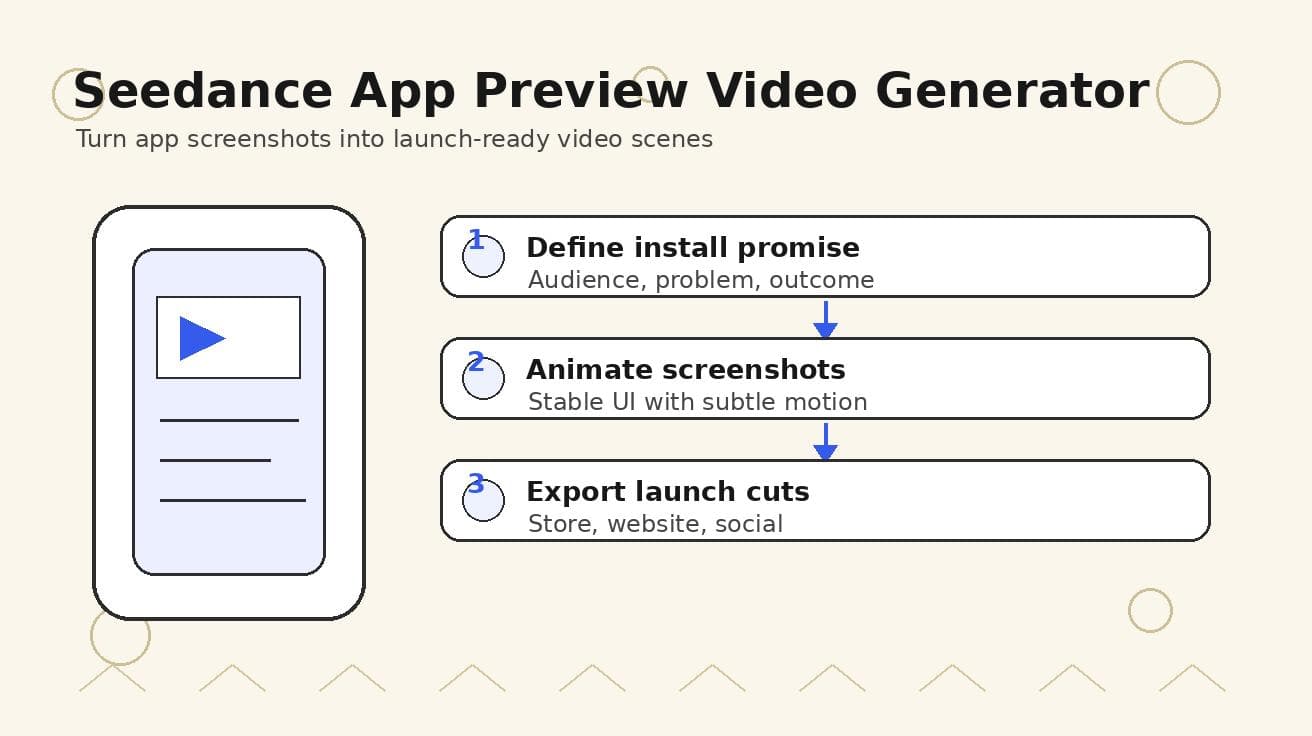
Seedance App Preview Video Generator 2026: Create App Store and Product Launch Clips
Use Seedance to turn app screenshots, feature copy, and launch goals into App Store previews, Google Play promo videos, and product launch clips.
Read article
Best Free AI Video Generators — September 2026: Tested and Ranked
Compare the best free AI video generators in September 2026 by clip length, resolution, watermark, credits, sign-up requirements, and production fit.
Read article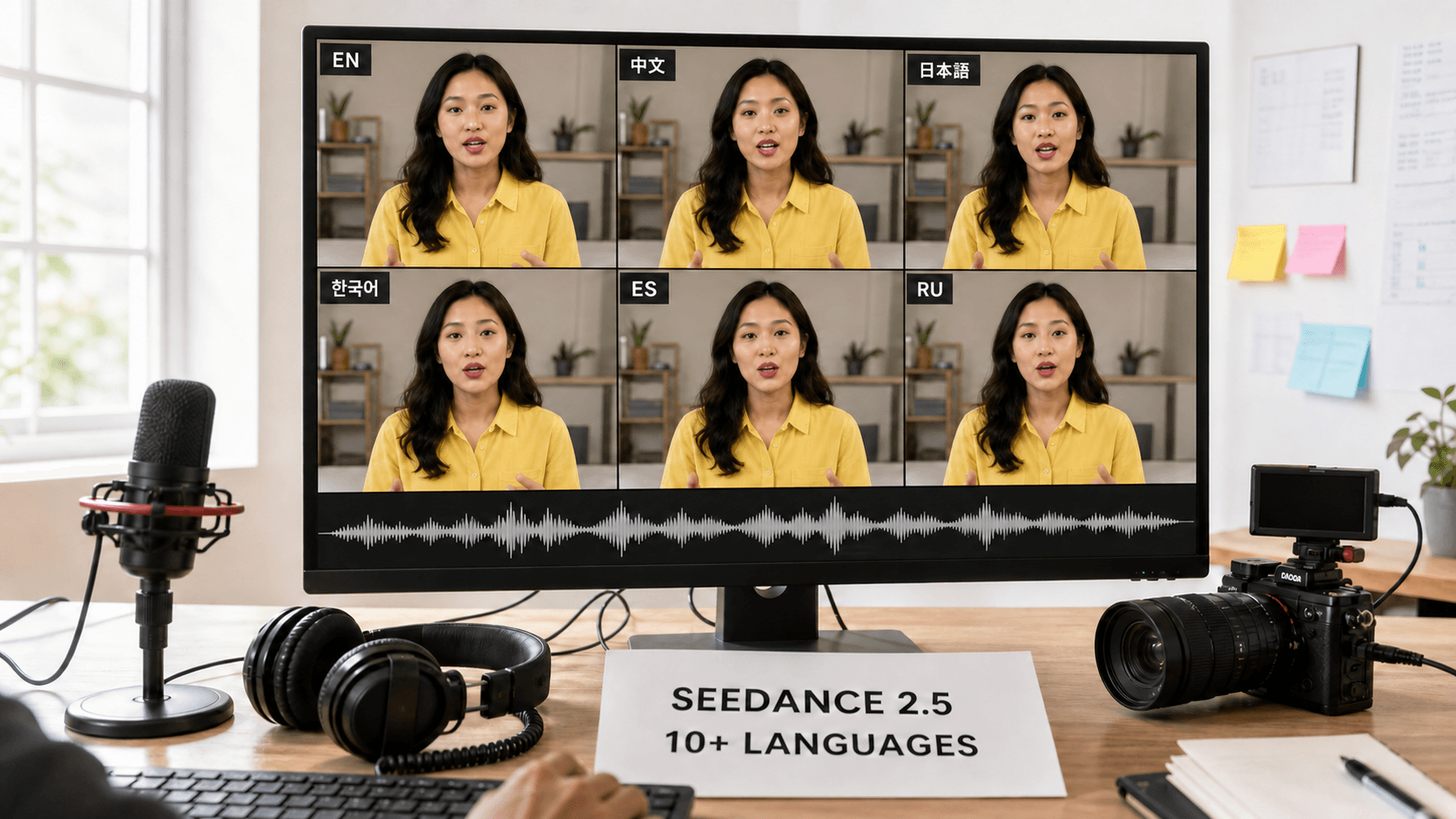
Seedance 2.5 Supported Languages: Complete Guide to Multilingual AI Video
Learn which languages Seedance 2.5 supports, how native multilingual audio and lip-sync work, and how to build reliable localized video workflows.
Read article