

AI Overview
What is the best cloud GPU for MiniMax H3?
The best choice is the least expensive GPU that runs your exact H3 workflow without offload stalls or failed decodes. Compare cost per approved clip, not hourly price alone.
How much VRAM does a MiniMax H3 cloud GPU need?
VRAM depends on checkpoint precision, encoder, resolution, frames, audio, attention backend, and offloading. A benchmark must report the full configuration instead of one universal minimum.
Why can a faster GPU cost less per video?
A higher hourly rate can still produce a cheaper clip when it finishes much faster, avoids retries, and keeps the model resident between jobs. Cold-start time can reverse that advantage for short sessions.
Ready to try it yourself?
Free credits on signup. Plans from $20/month.
Should I rent a GPU or use Seedance Agent?
Rent a GPU when you need graph-level control and repeatable local-style experiments. Use Seedance Agent when planning, references, approvals, partial reruns, and delivery matter more than maintaining infrastructure.
What a MiniMax H3 Cloud GPU Benchmark Must Control
A useful benchmark is a controlled production test, not a screenshot of one generation timer. MiniMax H3 can combine video and audio branches, large text conditioning, latent sampling, and VAE decoding. Each stage stresses hardware differently. If one tester uses a quantized encoder, another uses full precision, and a third enables aggressive offloading, the GPU names are not the only variable.
Record the checkpoint files, precision, ComfyUI version, custom-node commits, Torch and CUDA builds, attention backend, resolution, frame count, steps, seed, reference inputs, audio settings, and launch flags. Also record system RAM, storage type, and whether weights were already cached. The official H3 model materials document several generation modes and deployment routes, while community packages show that optimized files can materially change memory behavior. That is why this guide provides a benchmark protocol rather than pretending one borrowed timing applies everywhere.
Use the MiniMax H3 local setup guide before benchmarking if your graph does not yet complete a clean baseline. A broken node stack, mismatched kernel, or incomplete download can look like a slow GPU when the real problem is software.

A cloud benchmark should connect infrastructure numbers to the finished frame a creator actually approves.
Measure the whole job
Capture provisioning, model download, model load, conditioning, sampling, video decode, audio decode, muxing, upload, and teardown. Report both cold-run and warm-run totals. A fast sampler can still deliver a slow job when a temporary machine spends ten minutes downloading weights or when output upload crosses regions.
Define the unit of value
“Seconds per step” is useful for engineering, but creators buy completed clips. Track cost per generated clip, cost per usable clip, and cost per approved clip. The last number includes failed generations and reruns, which is where stability often matters more than a small speed lead.
Benchmark Matrix: Workloads That Expose the Real Bottleneck
Run at least three workloads with the same seed and settings on every machine. A single easy prompt hides bottlenecks. The following matrix is deliberately practical: one environment-heavy shot, one detail-and-hands shot, and one motion-and-particles shot. Together they reveal memory pressure, temporal stability, decode time, and whether speed gains survive difficult content.
| Workload | What stays fixed | What to inspect | Primary bottleneck |
|---|---|---|---|
| Harbor wide shot | Duration, aspect ratio, steps, seed | Rain, rail geometry, distant workers, camera stability | Latent sampling and temporal coherence |
| Clockmaker close shot | Identity, hands, tools, shallow focus | Fingers, tiny objects, face texture, detail retention | Conditioning and decode quality |
| Market action shot | Fast hand motion, steam, flame, crowd | Motion separation, particles, reflections, audio timing | Throughput, attention, video/audio decode |

Wide scenes expose temporal drift and background geometry that a portrait-only test can miss.
Keep the prompt text in a plain file and hash the workflow JSON. Save the raw console log for every run. If a provider image or driver changes, begin a new result set rather than silently mixing it with the old one. For precision choices, compare the trade-offs in MiniMax H3 Qwen encoder INT8 vs INT4 before locking the matrix.
How GPU Tiers Change Speed, Cost, and Reliability
Cloud GPU shopping usually starts with VRAM, but capacity is only the admission ticket. Memory bandwidth, low-precision kernel support, architecture, driver stack, CPU allocation, system RAM, local NVMe, and provider oversubscription all affect the job. Two instances advertising the same GPU may behave differently when one has slower attached storage or less host memory.
Budget tier: prove the graph
A lower-cost instance is sensible for installation checks, short drafts, and workflow edits. It becomes expensive when offloading turns every step into a transfer, the VAE decode repeatedly falls back, or memory fragmentation forces a restart. Use it to validate the pipeline, then decide whether its warm-run cost per clip is acceptable.
Production tier: protect the queue
A larger, newer GPU can keep more components resident and reduce reloads between clips. The practical gain is often steadier throughput rather than a dramatic first-run number. For batch work, calculate the median of at least three warm clips plus the 95th-percentile job time. A machine that is slightly slower on average but rarely fails can finish a client queue sooner.
Multi-GPU and premium accelerators
Premium instances only pay off when the software path uses them efficiently. Do not assume that doubling GPU count halves render time. Confirm that the serving stack partitions the model or schedules concurrent jobs without duplicating memory waste. For one-off clips, model download and container startup can dominate. For a sustained queue, premium hardware may win because fixed overhead is amortized.
src=https://r2.seedance.tv/blog/minimax-h3-comfyui/official-r2v-output-v1.mp4
poster=https://r2.seedance.tv/blog/minimax-h3-comfyui/official-r2v-poster-v1.png
label=Reference-to-video motion sample for benchmark quality review
Use moving output like this to score identity, motion continuity, and audio—not only elapsed time.
Run a Reproducible Cloud GPU Test
1. Freeze the software image
Pin the operating system image, driver, CUDA, Torch, ComfyUI revision, and every custom-node commit. Export the environment manifest before the first run. Do not update a node halfway through the matrix. If a provider forces an image change, label the next results as a new benchmark version.
2. Stage the same assets
Place model files and references in the same region as the GPU. Verify hashes after transfer. Run from local NVMe when possible, because network-mounted storage can distort load and decode times. Keep the same prompt, seed, steps, frame count, dimensions, and audio options across cards.
3. Separate cold and warm runs
Time the first run from instance start, then three warm runs after all weights are resident. Record peak VRAM, peak system RAM, GPU utilization, disk reads, and failures. Exclude nothing: if a run crashes, it still consumed money and belongs in cost-per-approved-clip math.
4. Review outputs blind
Rename results with random identifiers before review. Score subject stability, environment continuity, motion, fine detail, audio intelligibility, synchronization, and final usability. Hardware should not change the intended output, but precision paths and unstable kernels can. Blind review prevents an expensive GPU label from influencing quality judgments.

Close workbench scenes make hand errors, texture loss, and over-aggressive precision changes easy to spot.
Use a simple result row for every clip:
run_id, gpu, cold_or_warm, total_seconds, sample_seconds, decode_seconds, peak_vram_gb, peak_ram_gb, provider_cost, status, review_score
This reusable schema is the article's linkable asset: it lets teams publish comparable results without presenting an undocumented stopwatch as a benchmark.
Read the Results Without Fooling Yourself
Start with the median warm total, but never stop there. Calculate effective cost per completed clip and per approved clip. Add storage charges, persistent-volume fees, egress, and idle minutes. If you keep an instance running between reviews, include that time; otherwise the comparison favors machines with expensive idle periods hidden outside the render timer.
Look for variance. Large swings can signal shared-host contention, thermal limits, data transfer, or memory fragmentation. Check whether the first clip after a workflow change is slower because a component reloads. Compare failures by stage: out-of-memory during sampling is different from a decode crash or a final upload timeout.
Do not infer image quality from speed. Review the actual clip at normal playback and frame-by-frame. The FastH3 vs MiniMax H3 comparison explains why acceleration choices should be judged against motion and detail, not treated as a free numerical gain.

Complex motion and particles reveal whether a fast configuration remains production-usable.
For long sequences, treat memory headroom as a risk margin. A configuration that passes one five-second draft with almost no free VRAM may fail when references, audio, or frame count grow. The low-VRAM long-video workflow is useful when capacity matters more than raw throughput.
When Seedance Agent Is the Better Production Route
Cloud rental makes sense when you need exact checkpoints, custom nodes, private deployment, or a repeatable engineering benchmark. It also creates operational work: instance selection, model staging, environment repair, queue monitoring, storage cleanup, output review, and reruns. That work is reasonable for research; it can become the hidden cost in campaign production.
Seedance Agent is the better route when your main problem is coordinating the creative job rather than proving a GPU stack. You can organize references and shot intent, generate candidates, review finished outputs, approve the useful take, and rerun only the weak segment without keeping a rented machine alive while people decide. The comparison is therefore not “free local control versus paid convenience.” It is infrastructure control versus production coordination.
src=https://r2.seedance.tv/blog/minimax-h3-first-and-last-frame/official-flf-output-v1.mp4
poster=https://r2.seedance.tv/blog/minimax-h3-first-and-last-frame/official-flf-poster-v1.png
label=First-and-last-frame motion sample for acceptance review
A production decision should include whether the final motion passes review, not merely whether the GPU finished.
A practical split is to benchmark unfamiliar checkpoints on rented GPUs, then move approved shot planning and iterative delivery into the hosted workflow. If you need source-image animation, the Seedance image-to-video workflow gives a direct path without maintaining a temporary GPU environment.
Conclusion
A trustworthy MiniMax H3 cloud GPU benchmark controls the graph, files, precision, frames, seed, storage, and software image; separates cold and warm runs; counts failures; and evaluates real outputs. Choose the configuration with the best cost per approved clip and enough memory margin for the next workload, not the lowest hourly price or the fastest isolated step. When maintaining instances, checkpoints, reviews, and reruns costs more attention than the creative work, start the production in Seedance Agent and keep cloud benchmarking for the experiments that genuinely need infrastructure control.
Ready to try it yourself?
Put the steps from this guide into practice with Seedance and turn prompts or images into polished videos in minutes.
Free credits on signup. Plans from $20/month.
Related Articles
More posts in the same locale you may want to read next.
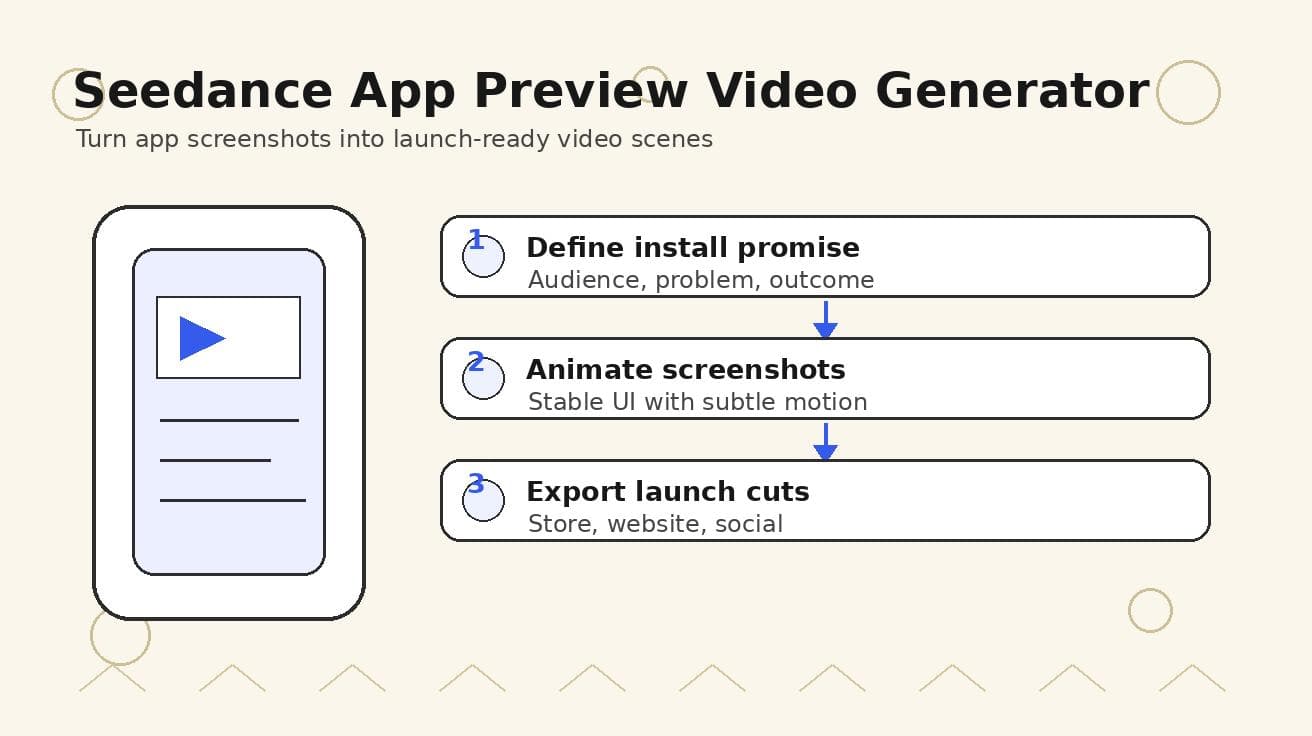
Seedance App Preview Video Generator 2026: Create App Store and Product Launch Clips
Use Seedance to turn app screenshots, feature copy, and launch goals into App Store previews, Google Play promo videos, and product launch clips.
Read article
ComfyUI Crowd Video Workflow: Control People, Motion, and Occlusion
Build a ComfyUI crowd video workflow that separates lead action from background motion, controls occlusion, protects faces, and produces reviewable group scenes.
Read article
ComfyUI Freezes After Video Generation: Recovery Guide
Diagnose why ComfyUI freezes after video generation, preserve logs, reduce VRAM pressure, isolate custom nodes and recover with a known-good workflow.
Read article