
Seedance Video Prompt Guide: 15 Seedance 2.0 Video Prompts to Copy
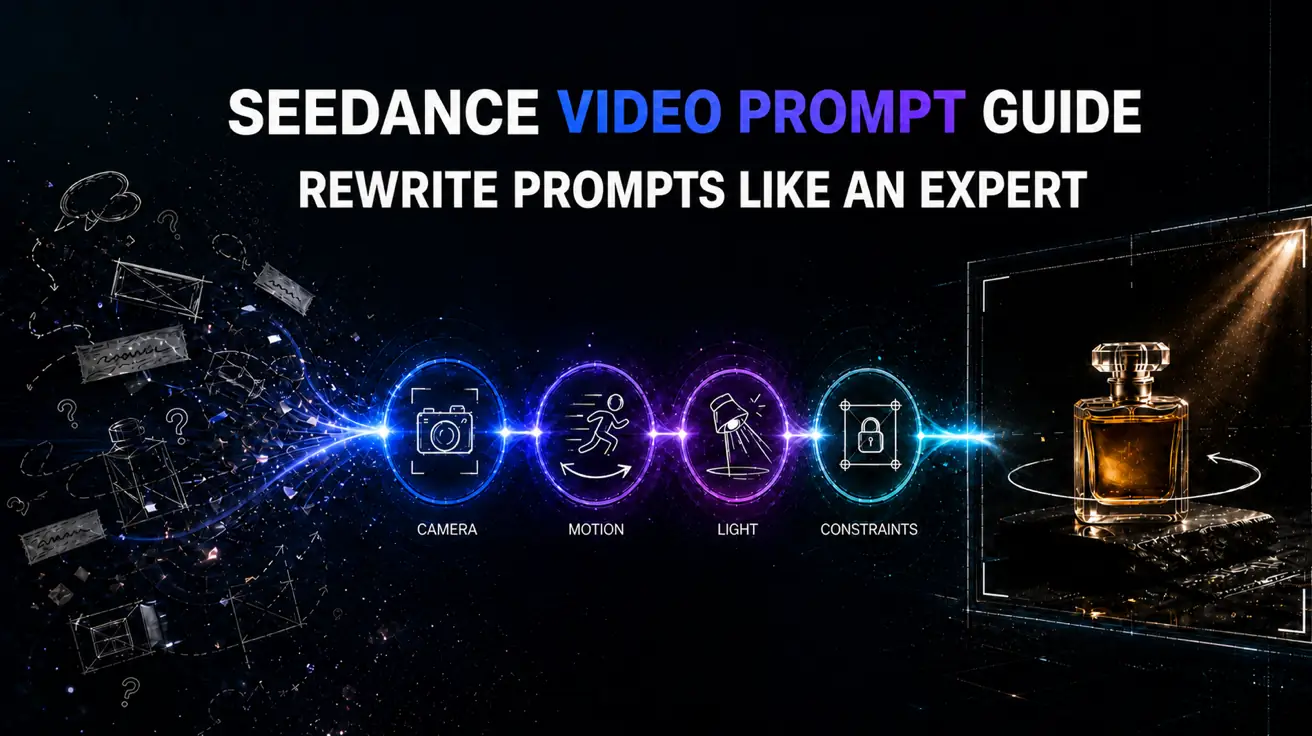
AI Overview
What makes a Seedance video prompt effective?
A strong Seedance video prompt defines one short shot: the subject, action, scene, camera, timing, and details to preserve. For example: “A runner crosses a wet street at night. Medium tracking shot at waist height. Keep the face and red jacket unchanged.” Use one main action and one camera move.
How do I use image, video, and audio references in a Seedance AI video prompt?
Ready to try it yourself?
Free credits on signup. Plans from $20/month.
Give each reference one job: images preserve appearance or composition, video guides motion or camera behavior, and audio guides rhythm, ambience, or dialogue. Name each role in the prompt, and avoid asking different references to control the same detail.
How do I keep characters or products consistent in Seedance 2.0 video prompts?
Use a clean reference and protect only essential traits: face, hair, outfit, proportions, product shape, packaging, or brand colors. Keep motion simple and review the full clip for drift. Add exact logos, labels, and UI text during editing when accuracy matters.
How do I control camera movement and timing in Seedance 2.0?
Use one measurable camera direction, such as “slow push-in over five seconds” or “parallel tracking at waist height.” Separate camera motion from subject action. If timing matters, describe events in order and remove conflicting movements.
15 Seedance 2.0 Video Prompts You Can Copy
Pick the prompt that matches your use case, replace the bracketed details, and use the listed workflow. Keep the model, aspect ratio, duration, and source assets unchanged when testing revisions.
Cinematic Shots and Camera Motion
1. Cinematic tracking shot
Workflow: Text to Video
Best for: Travel, fashion, sports, and any subject moving through a real environment.
Prompt: A [subject] moves steadily through [location]. Medium side-profile tracking shot at [camera height], keeping a constant distance for [duration] seconds. [Time of day] light, realistic ground contact, and stable background perspective. Keep [identity details] unchanged; no sudden zoom or orbit.
2. Slow camera orbit
Workflow: Text to Video
Best for: Sculptures, vehicles, furniture, and objects whose visible sides can be described from text.
Prompt: Close-up of [subject] centered on [surface]. One slow [90/120]-degree camera orbit from [start angle] to [end angle] at a constant distance. [Light source] sweeps gently across [material]. Keep the silhouette, color, and surface texture stable; no cuts, camera shake, or added objects.
3. Drone reveal
Workflow: Text to Video
Best for: Landscapes, architecture, resorts, and cinematic establishing shots.
Prompt: Wide aerial view beginning behind [foreground object]. The camera rises slowly to reveal [main location], then holds the horizon steady. [Weather] at [time of day], realistic depth, atmospheric haze, and a [duration]-second continuous shot. No sudden tilt, speed change, or new buildings.
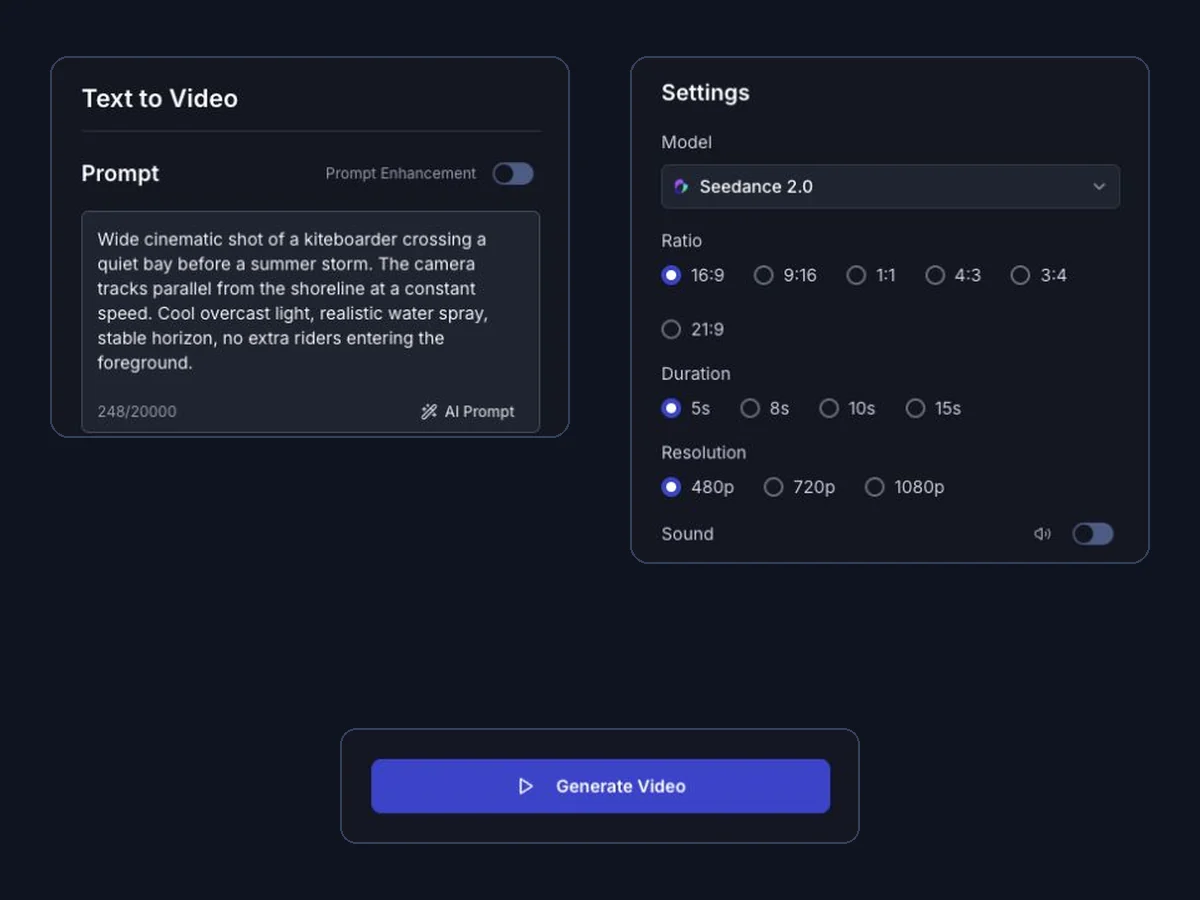
Product Ads and Social Videos
4. TikTok product hook
Workflow: Image to Video
Best for: Fast 9:16 hooks built from a real product or packaging image.
Prompt: Use the uploaded [product] image. In the first second, a hand places the product on [surface] and reveals [feature]. Slight handheld motion, bright [light source], clear product view, and upper safe space for captions. Keep the packaging shape, label placement, and brand colors unchanged; no invented text or controls.
5. UGC product demonstration
Workflow: Image to Video
Best for: Beauty, kitchen, fitness, and everyday-use products that need a credible demonstration.
Prompt: Use the uploaded [product] image in a 9:16 UGC scene. [Person] performs one action: [visible use] in [real location]. Medium close-up, natural window light, gentle handheld movement, and [duration] seconds. Keep the product fully visible and preserve its packaging layout and colors; no extra accessories.
6. Luxury product reveal
Workflow: Image to Video
Best for: Perfume, watches, jewelry, cosmetics, and premium packaging.
Prompt: Use the uploaded [product] packshot on [premium surface]. Macro shot with one slow push-in while a narrow [warm/cool] key light moves across [material]. The background remains still for [duration] seconds. Keep the product shape, cap, label placement, and color unchanged; no hands or added objects.
This controlled test keeps the source image and visible generation settings fixed, so the result can be traced from source to prompt to output.
Tested prompt: Use the uploaded AI-generated amber perfume packshot on black stone. Macro shot with one slow push-in while a narrow warm key light moves from left to right across the amber glass. The background remains still for five seconds. Keep the bottle shape, gold cap, centered label placement, amber liquid color, black stone, and background unchanged; no hands, added objects, cuts, orbit, or camera shake.
| AI-generated source image | Seedance generated result |
|---|---|
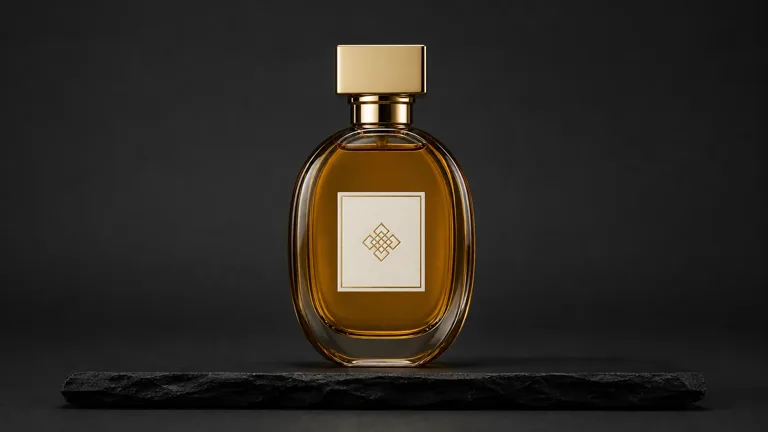 |
 |
AI-generated source image and actual Seedance output. Review the full clip for product shape, label placement, the slow push-in, and the left-to-right light sweep. Seedance 2 Mini · Image to Video · 16:9 · 5 seconds · 480p · sound off.
7. App or UI feature demo
Workflow: Image to Video — use a real interface screenshot and add exact UI copy during editing.
Best for: Product tours and feature announcements based on an uploaded real interface screenshot.
Prompt: Use the uploaded [app or website] screenshot. Apply one slow push-in toward [feature area] while one cursor points to [control] without clicking. Keep the original layout, icons, spacing, brand colors, and visible text unchanged. Do not invent controls, rewrite labels, or rotate the interface.
Image-to-Video and Character Consistency
8. Animate a product image
Workflow: Image to Video
Best for: Turning one approved packshot into a subtle product clip without inventing unseen sides.
Prompt: Animate the uploaded [product] image with one slow push-in or slight parallax and a soft light sweep from [direction]. Keep the original composition, product shape, packaging, label placement, color, and background layout unchanged. [Duration] seconds; no new objects or camera orbit.
9. Preserve the same character
Workflow: Reference to Video
Best for: Recurring characters, campaign talent, and multi-shot stories.
Prompt: Use the reference character and lock these identity features: [face shape], [hair], [outfit], [signature accessory], and [body proportions]. The character [one action] in [new location]. Medium tracking shot at a constant distance with [light source]. No duplicate character, costume change, or altered facial features.
10. Animate a portrait naturally
Workflow: Image to Video
Best for: Profile images, editorial portraits, and quiet character introductions.
Prompt: Animate the uploaded portrait with one natural blink while breathing remains barely perceptible. Locked medium close-up, soft [light source], and [duration] seconds. Keep the face, hairstyle, skin tone, clothing, and background unchanged; no head turn, lip movement, age change, or camera shake.
11. Create a seamless loop
Workflow: Image to Video
Best for: Website heroes, ambient backgrounds, and social loops built from an approved first frame.
Prompt: Create a [duration]-second locked-camera loop from the uploaded [scene]. [Single repeating motion] moves smoothly and returns to its exact starting position by the final frame. Keep every object and background detail unchanged. No cuts, new objects, or brightness jump at the loop point.
Character consistency test — Prompt #10
This controlled test uses the portrait-animation prompt above with the same reference image and visible generation settings throughout.
Tested prompt: Animate the uploaded portrait with one natural blink while breathing remains barely perceptible. Locked medium close-up, soft diffused window light from camera-left, and five seconds. Keep the face, center-parted shoulder-length black hair, skin tone, rust-red sweater, framing, and dark slate background unchanged; no head turn, lip movement, age change, camera movement, or background drift.
| AI-generated reference portrait | Actual Seedance output |
|---|---|
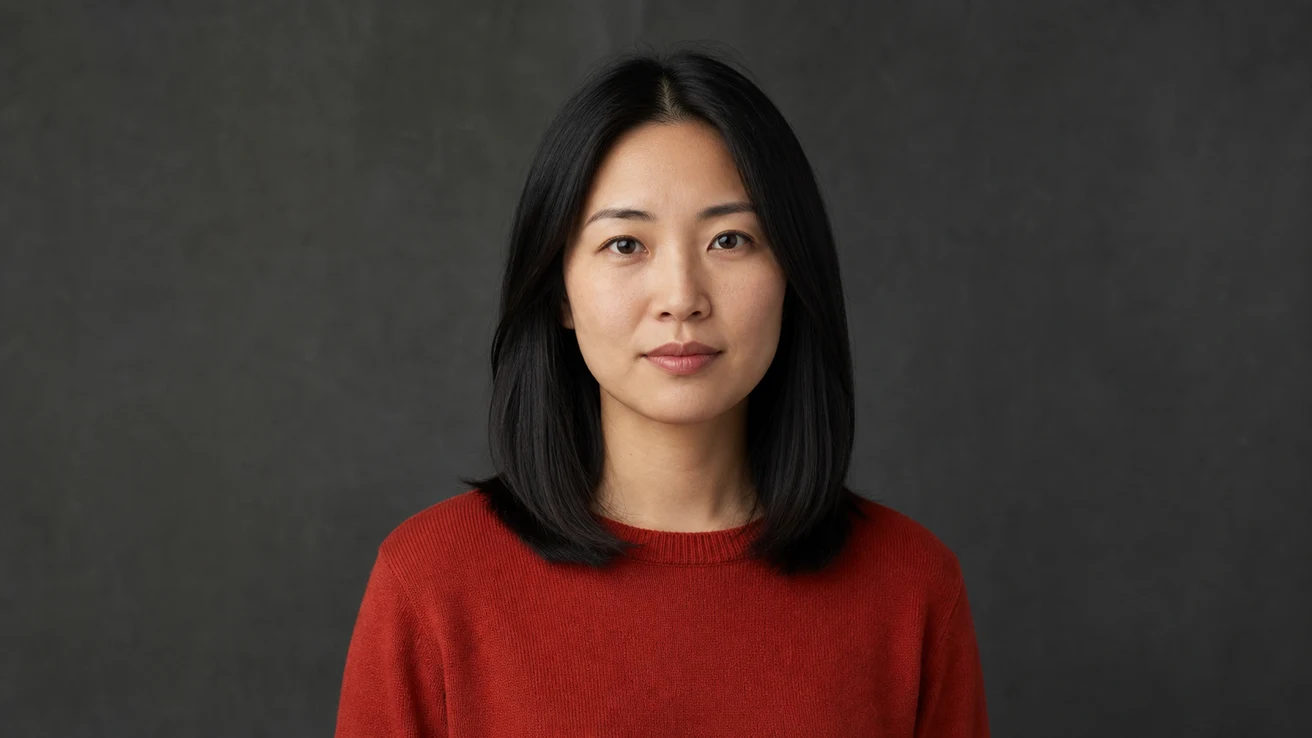 |
 |
Reference image and actual Seedance output. Review the full clip—not one frame—for face, hair, clothing, and background drift. Also check that the blink remains natural without a head turn or lip movement. Seedance 2 Mini · Image to Video · 16:9 · 5 seconds · 480p · sound off.
Creative, Action, and Audio Scenes
12. Anime action sequence
Workflow: Reference to Video
Best for: Stylized character action that must preserve a reference design.
Prompt: Use the reference character with [face], [hair], [costume], and [weapon]. In a wide shot, the character performs one [attack or dodge] in [location]. The camera tracks sideways at a constant speed, then holds when the action ends. [Lighting], [duration] seconds, controlled motion lines, and no extra limbs or scene cut.
13. Choreographed fight scene
Workflow: Reference to Video
Best for: One readable attack-and-block exchange between two referenced characters.
Prompt: Use Character A and Character B from the references in [location]. A attacks once; B blocks once; both stop. Locked wide camera at chest height, [light source], and [duration] seconds. Keep both faces, outfits, starting positions, and proportions unchanged; no extra fighters, cuts, or duplicate limbs.
14. Transformation video
Workflow: Image to Video
Best for: Fashion changes, material transformations, and before-and-after reveals.
Prompt: Use the uploaded [subject] image. In a locked full-body shot, [starting state] transforms gradually into [final state] over [duration] seconds while the pose, camera, background, and floor contact remain fixed. [Light source] stays constant. Keep the face and body proportions unchanged; no cut, spin, or extra subject.
15. Surreal or meme-style short video
Workflow: Text to Video
Best for: Short visual jokes with one event and one precisely timed audio cue.
Prompt: 9:16 locked shot of [ordinary subject] in [familiar location]. In the first second, [single surreal event] happens; the subject reacts once and remains in frame. Play [sound cue] exactly when the event begins, with no dialogue. Realistic [light source], dry comedic timing, and [duration] seconds. No captions, scene change, or second joke.
Weak vs Expert Seedance Video Prompts
A Seedance video prompt expert changes one visible variable at a time instead of rewriting the entire prompt after a failed result. Keep the model, aspect ratio, duration, and source assets fixed so the comparison isolates the prompt change.
Prompt specificity test
Weak prompt: Make a cinematic perfume product video.
Generated result issue: The subject is visible, but the prompt does not define the composition, camera path, lighting direction, or preservation details.

Revised prompt: Macro product shot of an amber perfume bottle centered on black stone. One continuous slow 90-degree orbit from front-left to front-right at a constant distance. A narrow warm key light sweeps across the glass while the dark background remains still. Keep the bottle shape, cap, label placement, and amber liquid color unchanged. No added text, hands, extra objects, cuts, or camera shake.
What changed this round: Prompt specificity was the tested variable; the revised version defines the shot, camera path, light, and preservation rules while visible generation settings remain fixed.

What to observe next: Compare composition, subject visibility, lighting direction, and the complete camera path. Review each full clip before deciding whether the orbit and timing succeeded.
How to Adapt a Seedance AI Video Prompt for References
A Seedance AI video prompt should tell each input what it controls. Use Seedance Text to Video when words must define the scene, Seedance Image to Video when an approved frame should control appearance or composition, and Reference to Video when identity or motion guidance matters. Review supported inputs on the Seedance 2.0 model page before building a reference-heavy test.
| Input | Its job | Prompt should describe |
|---|---|---|
| Text | Define the scene and action | Subject, action, camera, timing |
| Image | Lock appearance or composition | What should move and what must stay unchanged |
| Video | Guide motion or camera behavior | Which movement, pace, or camera path to follow |
| Audio | Guide rhythm, ambience, or dialogue | Sound source, speaker, language, line, and timing |
- Give each reference one primary job.
- If two inputs conflict on appearance, camera path, or timing, decide which input has priority before generating.
For more preparation advice, read the Image to Video AI guide. For additional camera and prompt patterns, see AI Video Prompts for Beginners.
Fix a Failed Seedance Video Prompt
Find the closest problem below, change one variable, and regenerate with the same settings and source assets.
| Problem | First change to test |
|---|---|
| Motion looks chaotic | Keep one main action. |
| Camera direction is ignored | Use one measurable camera path near the beginning. |
| Character or product drifts | Use a clean reference and protect 3–5 essential traits. |
| Scene looks generic | Add one physical location, material, light source, or time of day. |
| Logo, label, or UI text is unreadable | Reduce motion and add exact text during editing. |
| Audio or dialogue does not match | Shorten the line and specify speaker and timing. |
| Loop point jumps | Reduce the travel distance and return to the starting position. |
| Results vary between tests | Keep every input fixed and revise one prompt variable. |
Conclusion
A useful Seedance video prompt is short enough to test and specific enough to evaluate. This Seedance video prompt guide gives you 15 Seedance 2.0 video prompts, a reference workflow, a controlled comparison method, and an eight-problem repair sequence without repeating the same formula in every section.
Choose one prompt, replace the bracketed variables, keep the generation settings fixed, and revise one visible decision at a time.
Ready to try it yourself?
Put the steps from this guide into practice with Seedance and turn prompts or images into polished videos in minutes.
Free credits on signup. Plans from $20/month.
Related Articles
More posts in the same locale you may want to read next.
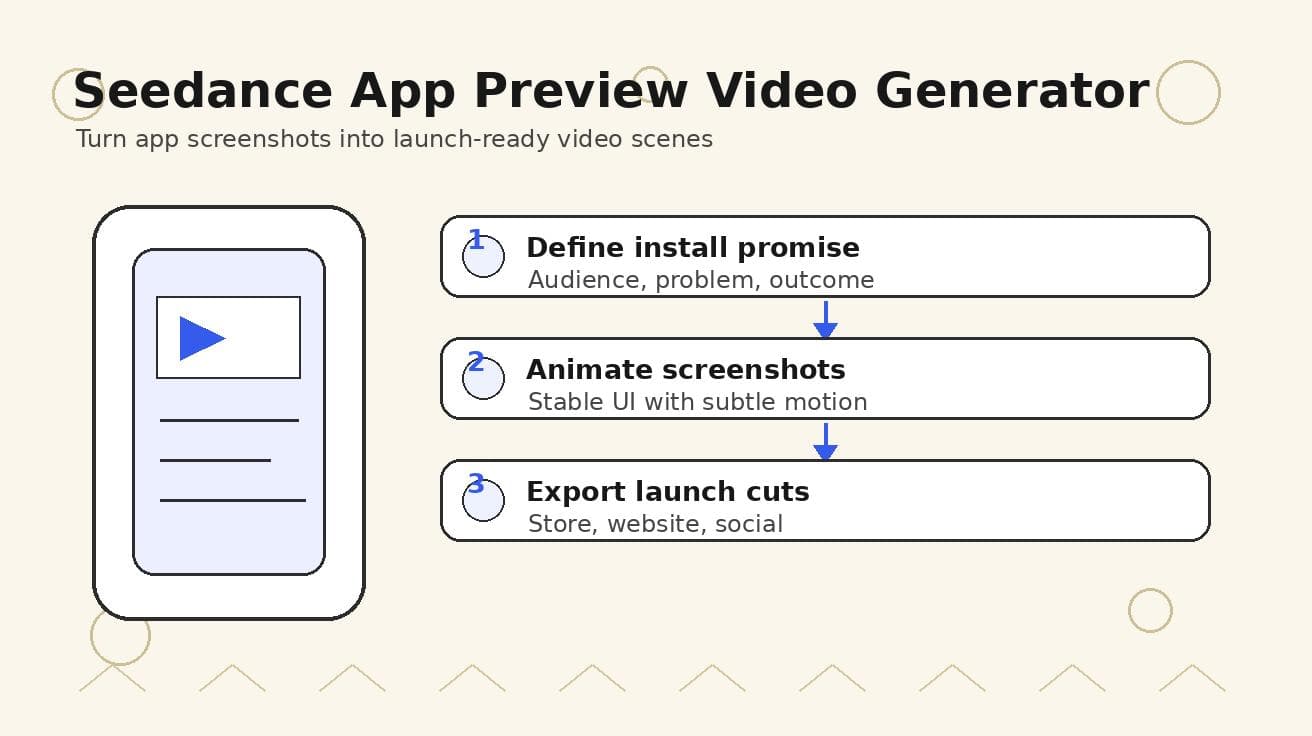
Seedance App Preview Video Generator 2026: Create App Store and Product Launch Clips
Use Seedance to turn app screenshots, feature copy, and launch goals into App Store previews, Google Play promo videos, and product launch clips.
Read article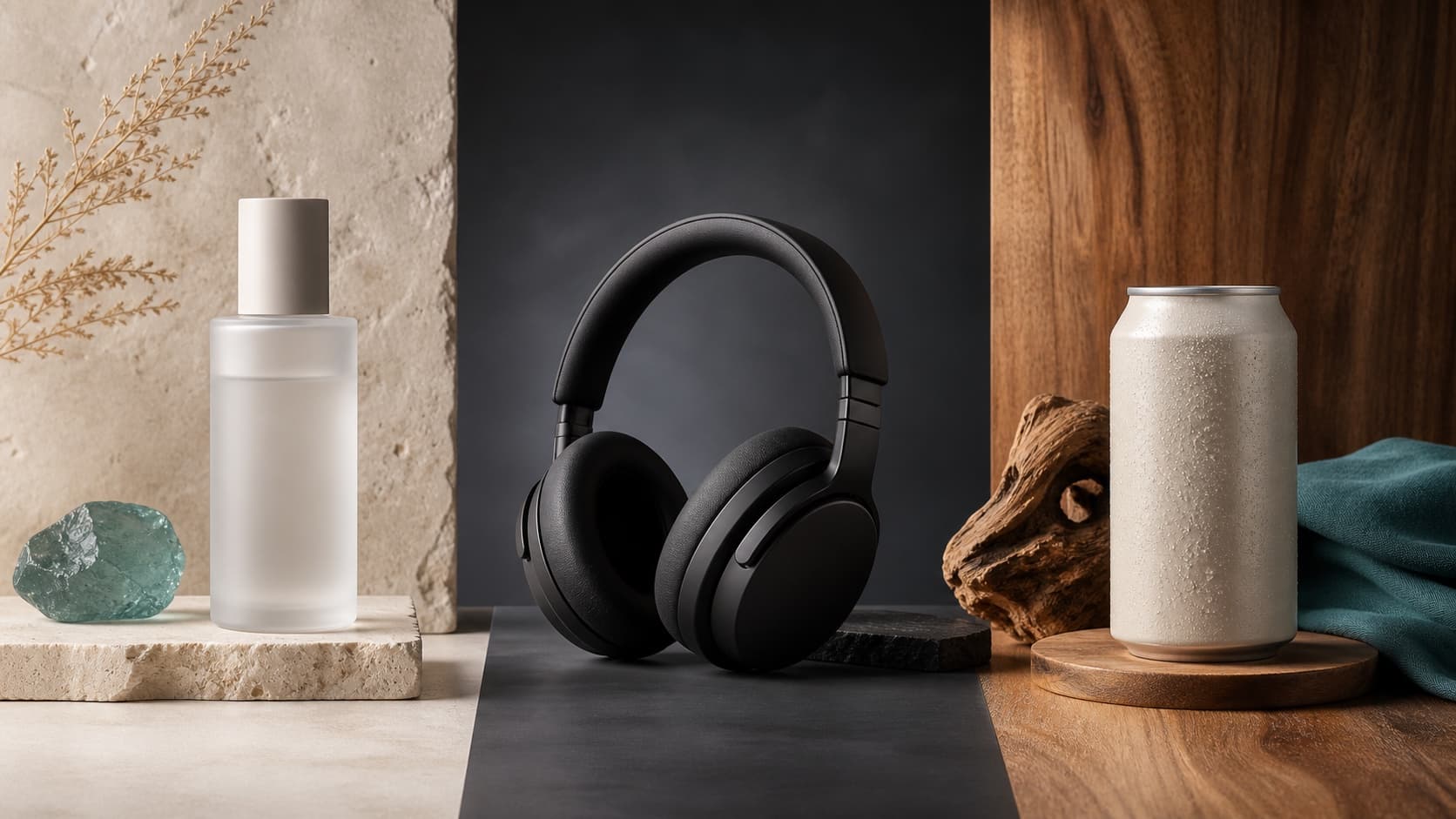
Seedream 5.0 Product Poster Prompts: Templates, Lighting, and Background Swap Guide
Create stronger product posters with a six-part Seedream 5.0 prompt formula, five product templates, three lighting setups, text rules, and a background-swap workflow.
Read article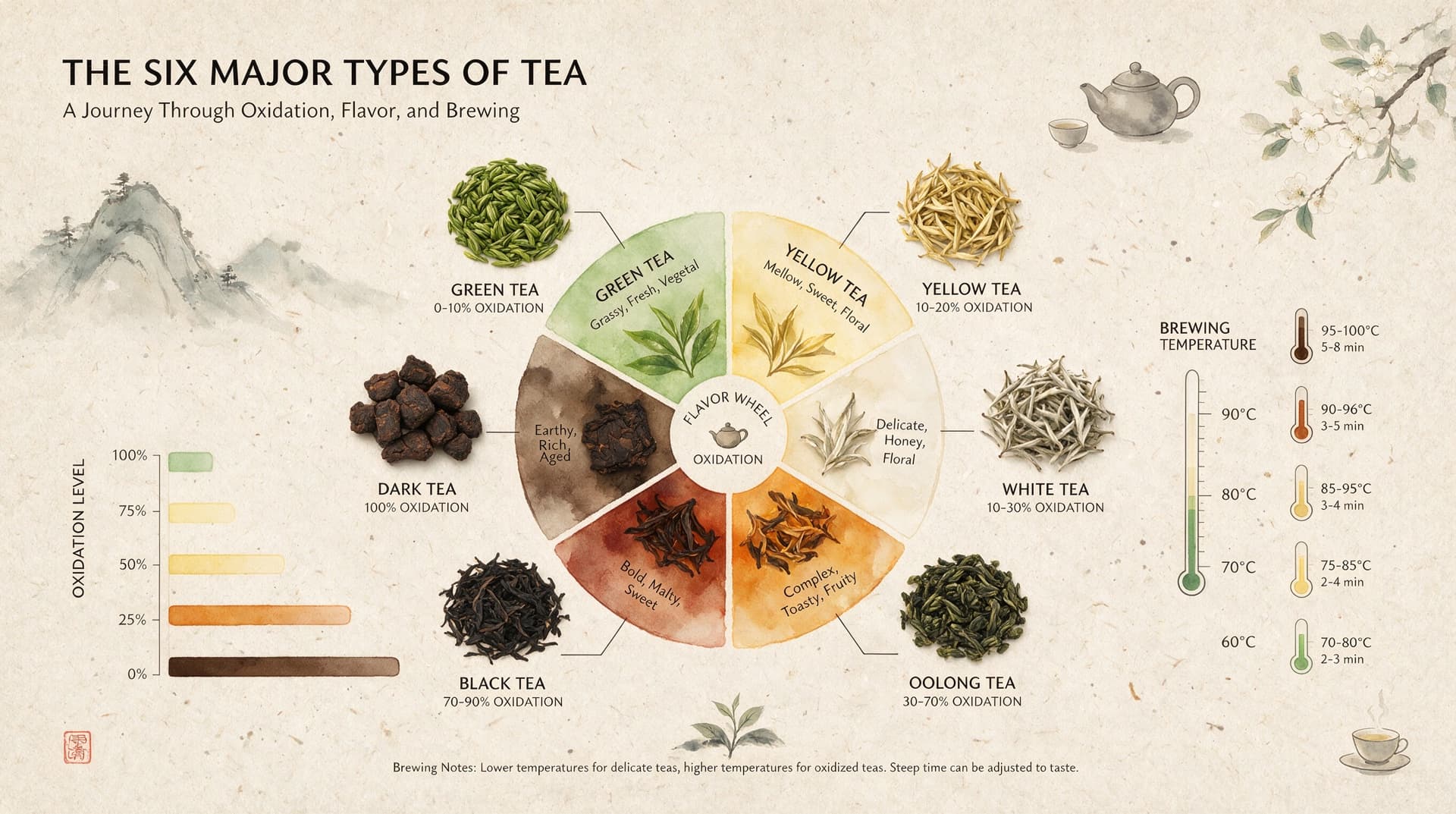
Seedream 5.0 Infographic Prompts: Templates, Text Tips, and 5 Copy-Ready Examples
Create clearer AI infographics with a seven-part Seedream 5.0 prompt formula, five reusable templates, practical text tips, and five copy-ready examples.
Read article